
12 Key SharePoint Features Explained: Sites, Libraries, Permissions, Automation
Many mid-sized and large enterprises don’t struggle with a lack of tools. They struggle with scattered information. Files sit in email threads, shared drives, chat attachments, and personal folders. As a result, teams waste time searching, rework the same documents, and occasionally use the wrong version.
This is where SharePoint fits. A SharePoint site or SharePoint intranet provides them a structured way to organize content, manage access, and collaborate in one place. It becomes the “content backbone” behind everyday work — department operations, project delivery, and internal communications. Just as importantly, it helps standardize how information is stored and shared, making processes more transparent and information easier to access as the business grows.
This article breaks down 12 key SharePoint features, including sites, libraries, permissions, and automation. Along the way, it also explains what “AI readiness” really means in SharePoint. Copilot works best when content is clean, consistent, and properly secured. So instead of treating AI as a separate project, the goal is to build a SharePoint foundation that makes AI useful, safe, and scalable.
Feature #1: SharePoint Sites
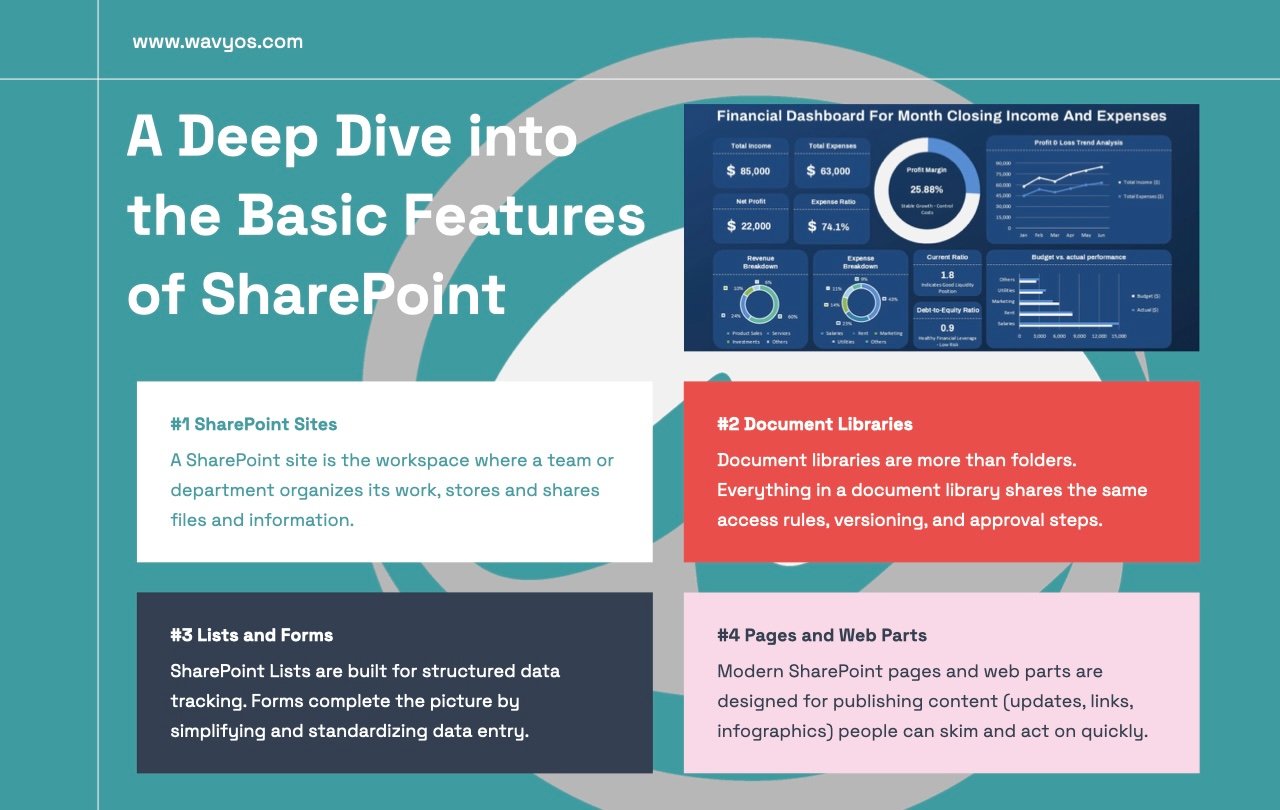
A SharePoint site is the workspace where a team or department organizes its work. It’s where you bring together people, files, pages, and updates. So instead of scattering much needed information across multiple locations, the site becomes the “home base” for that area of work.
Team Site vs Communication Site
SharePoint typically uses two types of site:
- A Team Site is built for day-to-day collaboration. It’s ideal when a group needs to co-author documents, manage shared working files, and track tasks or requests in a structured way.
- A Communication Site, on the other hand, is built for broadcasting information. It works well for content such as announcements, policies, and curated resources that many people need to read, but only a few people should publish.
Why it matters: clear structure drives behavior. When each department or project has a well-defined site, people know where to save files, where to find the latest updates with clear ownership. For example, a project delivery site can store drawings, manage correspondence, and publish reports so everyone uses the same references. The payoff is simpler administration, better search results, and fewer “shadow folders” littered across the tenant.
Feature #2: Document Libraries
Document libraries are more than folders. In SharePoint, a library defines both permissions and process, so everything inside can share the same access rules, versioning, and (if needed) approval steps.
A proven enterprise setup is to separate “Working” and “Controlled” content into different libraries. Working libraries support rapid collaboration and frequent updates. Whereas controlled libraries house approved documents, templates, contracts, and published procedures that require tighter governance.
Start with ownership and security before creating libraries. Decide who owns each library, who can edit, and who is read-only. With clear ownership, structure stays simple, permissions stay clean, and later AI readiness improves because content is stored in the right place with the right level of control.
Feature #3: Lists and Forms
SharePoint Lists are built for structured data tracking. They help teams capture and store operational data, then filter, group, and monitor it as work progresses. Forms complete the picture by simplifying and standardizing data entry — improving data quality without a complex application.
In mid-sized and large enterprises, Lists and Forms are ideal for cross-team registers and logs. For example, a simple form can feed a centralized list for an RFI/ query register, variation log, timesheet or usage tracker. Each entry becomes a single record with clear fields (owner, status, due date, references), enabling more reliable reporting and auditing.
Feature #4: Pages & Web Parts
Modern SharePoint pages are designed for publishing content people can skim and act on quickly. They work well for guidance, updates, and lightweight dashboards, because you can lay out information in sections instead of burying it in long documents. Web parts are the building blocks on a page. SharePoint web parts provide an elegant, effortless way to present content — documents, lists, infographics, links, news, and embeds — without forcing users to click through multiple libraries.
A practical example is a “Project home” page. It can feature headline links to key documents (updated reports, final drawings), show major milestones, pin the latest notices, and provide direct access to forms for common tasks. Done well, the page becomes the first stop for the team, not just another place to store and share content.
Feature #5: Navigation & Hub Sites
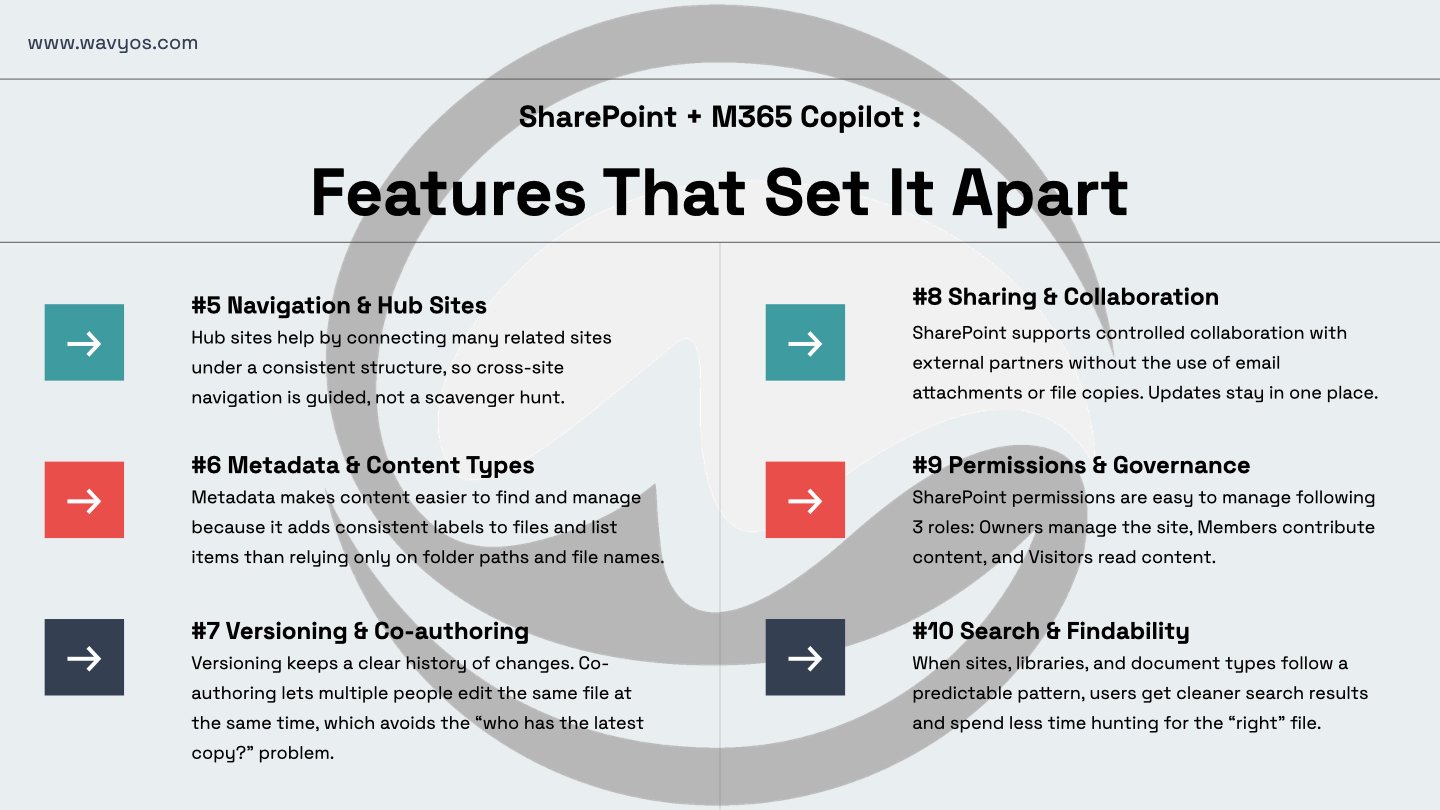
Hub sites help by connecting many related sites under a consistent structure, so cross‑site navigation is guided, not a scavenger hunt. A common pattern is there to mirror how the business operates — region → business unit → project — making it feel natural and scalable.
As SharePoint grows, navigation becomes just as important as storage. Hubs improves discoverability without pushing everyone into a single mega-site. Teams keep focused workspaces, while the hub provides a shared front door with consistent navigation, branding, and key rollups. The result is simpler wayfinding, cleaner search paths, and better governance, with growth by design, not sprawl.
Feature #6: Metadata & Content Types
Metadata makes content easier to find and manage because it adds consistent labels to files and list items. Instead of relying only on folder paths and file names, teams can filter and search by fields such as document type, project, discipline, status, or revision. That consistency matters in larger environments, where hundreds of sites and libraries can quickly become difficult to navigate.
Content types build on this by packaging reusable “templates” for how specific documents should look and behave. For example, you can define content types like “Contract,” “Drawing,” “Method statement,” or “Cost report,” each with its own required fields and (optionally) default document templates. This reduces guesswork and helps ensure the right metadata is captured from the start.
Feature #7: Versioning & Co-authoring
Versioning keeps a clear history of changes, so teams can review what changed, when it changed. And when needed, restore an earlier version. Co-authoring lets multiple people edit the same file at the same time, which reduces handoffs and avoids the “who has the latest copy?” problem.
Enterprises care because these controls create an audit trail and reduce errors across distributed teams, especially when work moves quickly and involves multiple stakeholders. It also helps when collaborating with external partners, since updates stay in one place instead of being spread across email attachments. Together, versioning and co-authoring keep everyone in sync without losing traceability.
Feature #8: Sharing & External Collaboration
Without the use of email attachments or file copies. SharePoint supports controlled collaboration with external partners — vendors, consultants, and clients. When you manage the sharing properly, everyone uses the single source. Updates stay in one place and remain traceable.
We can set clear governance for external sharing at the site or library level in SharePoint. Specify which libraries allow external access, what link types are allowed, who can invite guests, and how access is reviewed and removed at project close. This consistency scales well, reduces risk, and keeps collaboration smooth.
Feature #9: Permissions & Governance
SharePoint permissions are easiest to manage when kept role-based. At a simple level, most sites follow three roles: Owners manage the site, Members contribute content, and Visitors read content. By default, permissions “inherit” down the structure, meaning libraries and folders follow the site’s access rules unless you intentionally change them.
For enterprise governance, start with a few disciplined practices. Use groups instead of assigning permissions to individuals, so access changes don’t turn into a manual cleanup exercise. Keep confidential information separated by design, using dedicated sites or libraries with tighter access rather than sprinkling one-off restrictions everywhere. Finally, define ownership and lifecycle upfront: who approves access, who reviews permissions regularly, and who archives or retires content when a project ends. These steps keep collaboration fast while maintaining control.
Feature #10: Search & Findability
SharePoint search works best when content is organized consistently. In large environments, search can’t compensate for messy structure or missing metadata. That’s why findability is really an information architecture discipline. When sites, libraries, and document types follow a predictable pattern, users get cleaner search results and spend less time hunting for the “right” file.
Practical enterprise search hygiene:
- Use sensible library names that reflect purpose (e.g., “Project Standards,” “Working Documents,” “Controlled Documents”).
- Write clear page and document titles that match how people search, not internal shorthand.
- Tag document types consistently (e.g., Contract, Drawing, Method Statement, Cost Report) so filters and refiners work.
- Use hub navigation to guide users to the right area first, then let search do the final narrowing.
Feature #11: Automation with Power Automate
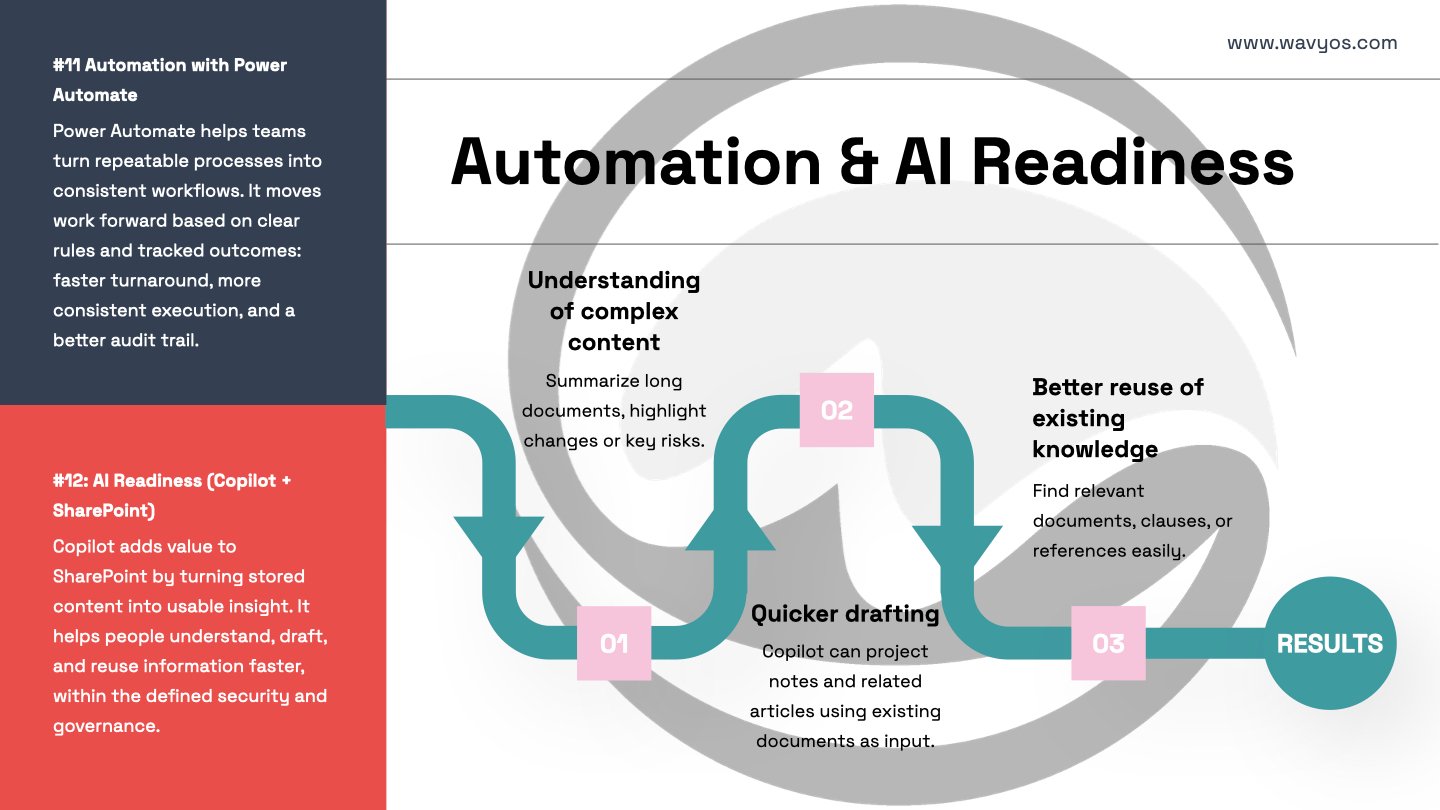
Power Automate helps teams turn repeatable processes into consistent workflows. Instead of relying on ad‑hoc emails and reminders, automation moves work forward based on clear rules and tracked outcomes. That delivers three things enterprises care about: faster turnaround, more consistent execution, and a better audit trail.
When these workflows sit on top of SharePoint libraries and lists, the process stays close to the content and data it monitors. Common workflow patterns map neatly to enterprise operations:
- Document approval for controlled content.
- Request intake → triage → assignment → SLA tracking, so submissions are captured once, routed to the right owner, and monitored until closure.
- Alerts for expiring documents, such as insurance, certifications, and contracts, to reduce compliance risk and last-minute renewals.
Feature #12: AI Readiness (Copilot + SharePoint)
Copilot adds value to SharePoint by turning stored content into usable insight. Instead of just housing and sorting files, it helps people understand, draft, and reuse information faster — within the security and governance you already have.
Faster understanding of complex content
Copilot can summarize long documents such as policies, procedures, contracts, and reports, so users grasp key points without reading every page. It can also highlight changes or key risks, which is especially helpful when reviewing multiple versions or large document sets.
Quicker drafting and communication
Within the SharePoint and Microsoft 365 context, Copilot can draft announcements, project updates, meeting notes, or intranet articles using existing documents as input. This reduces the “blank page” problem, while still allowing subject matter experts to review and refine content before publishing.
Better reuse of existing knowledge
Copilot can answer questions based on content already stored in SharePoint, helping users find relevant documents, clauses, or examples more naturally. Because it complies with existing permissions, people see answers based on what they are allowed to access, which keeps knowledge reuse secure as well as convenient.
Turn SharePoint Features Into Project Results
Project-based organizations such as engineering, construction, QS, education consulting depend on structured deliverables, milestone tracking, and compliance. A SharePoint-based Consultancy Management System brings this together in one place: organized sites and libraries, controlled permissions, automation, and partner-ready collaboration that scales across projects.
If your organization is still relying on shared drives, ad‑hoc folders, and email approvals, it’s time to redesign how content flows.
Ready to see how SharePoint can transform your operations?
Book a blueprint session or a tailored demo with us. We’ll map your workflows, show the 12 features in action, and design a structured, AI-ready SharePoint that accelerates your next project — and every one after. Contact us to get started.
Email: sales@wavyos.com
WhatsApp: +852 6099 4407
Other topics that you might be interested in:
- Our website design and development, mobile app development and SharePoint services.
- Our New Corporate Video: Can You Spot the AI?
- How to Transform Your Old App into a Smart Mobile App?
- Beyond Reactive: The Age of AI Customer Service
- What Could Your Business Accomplish With AI Workflows?
- How Does No-Code Development Revolutionize Modern Software Economics?
