
WordPress–SharePoint Integration: Get the Best of Both Worlds

WordPress is the preferred choice for building powerful, user-friendly business websites. SharePoint, on the other hand, serves an entirely different purpose: secure document management and sharing, and streamlined intranet collaboration. They are both essential tools. But often operate separately. The disconnection between these two systems creates a content gap; where web teams sometimes find themselves wasting time in searching for and re-uploading the right version of a document. To stay efficient, businesses today need to find a way to bridge the gap, ensuring strict compliance and access control with a seamless publishing workflow.
In this article, we’ll look at practical ways to connect WordPress and SharePoint. We’ll cover practical integration methods, real-world use cases, the key benefits, and simple tips to choose the right approach.
When WordPress SharePoint Integration Makes Sense (A Few Use Cases)
If you need to publish any company policies, product datasheets, forms, or reports and they already live in SharePoint. Connecting your SharePoint to WordPress can automatically update the “official” version on your site. It gives visitors a better experience website. They can always see the latest approved file, and your team stops updating the same document in two places.
WordPress–SharePoint integration also fits extremely well in partner and customer portals. Instead of emailing attachments or managing separate download areas, you can offer secure, permission-based access to files while keeping everything managed in SharePoint.
For intranets and extranets, many organizations use WordPress for a more polished, brand‑friendly front end, while SharePoint continues to manage the content behind the scenes. For project or department pages, WordPress can organize and present the SharePoint data neatly. These include lists, calendars, task trackers, and key dates. Finally, knowledge bases, user manuals and FAQs work well when SharePoint stores articles with clear tags. WordPress turns them into an easy-to-browse, search-friendly experience.
Bridging the Gap: 6 Ways to Integrate WordPress and SharePoint
When connecting WordPress to Microsoft SharePoint, there is no “one-size-fits-all” solution. The right choice depends on whether you simply need to show a few files or if you are building a complex enterprise workflow. Here is a breakdown of the generally available connection options.
Level 1: Standard Integrations (Plug-and-Play)
These options are ideal for marketing sites or small-to-medium businesses that want functionality without heavy coding.
Option 1. Dedicated WordPress Plugins
This is the most common path for non-developers.
-
- WPO365: Perfect for the Microsoft 365 ecosystem. It allows you to embed SharePoint libraries directly into pages using Gutenberg blocks and handles Single
- Sign-On (SSO) via Entra ID (Azure AD).
- miniOrange SharePoint Integrator: A versatile tool for syncing SharePoint documents to your Media Library, mapping user profiles, and even pushing WordPress form submissions into SharePoint lists.
Option 2. No-Code Automation Platforms (iPaaS)
If you need “if this, then that” logic, automation platforms act as a bridge.
-
- Zapier: Great for simple triggers, such as creating a WordPress post when a new item appears in a SharePoint list.
- Power Automate (Standard): Uses the SharePoint native connector to push data to WordPress via the REST API, keeping your document metadata in sync.
Option 3. Custom API & Database Integration
For specific enterprise needs, developers can connect directly to the source.
-
- Microsoft Graph API: The modern standard for programmatically fetching files and list data using OAuth 2.0.
- SharePoint REST API: Allows for full CRUD (Create, Read, Update, Delete) operations directly from your WordPress backend.
- OData Connectors: Middleware like CData can expose WordPress data as an OData feed for SharePoint to consume as an External List.
Level 2: Advanced Enterprise Architectures
For organizations requiring high performance, security, or complex logic, the following advanced frameworks offer more control.
Option 4. Power Platform Bridge
This takes automation a step further by using Power Automate as a sophisticated middleware layer.
-
- Custom Connectors: You can build an HTTP connector to talk directly to the WordPress REST API, allowing SharePoint to manage WordPress custom post types.
- On-Premises Gateway: This is the go-to for companies still using SharePoint Server (on-prem), providing a secure bridge to a cloud-hosted WordPress site.
Option 5. Headless WordPress Integration
In a “Headless” setup, WordPress and SharePoint both act as backends, while a modern frontend (like Next.js or React) pulls from both.
-
- Unified API Layer: The frontend makes separate calls to the WordPress API for articles and the Microsoft Graph API for documents.
- Security & Speed: Because the frontend is decoupled, you don’t expose your login pages to the public, and you can use Static Site Generation (SSG) for lightning-fast load times.
Option 6. Hybrid Integration (Decoupled Components)
This is probably the best “The Power of Two” approach. You keep your standard WordPress site but “inject” SharePoint functionality into specific sections.
-
- Client-Side Blocks: Developers create custom Gutenberg blocks that use the Microsoft Authentication Library (MSAL) to fetch a user’s private SharePoint files directly in the browser.
- Seamless SSO: Uses OpenID Connect (OIDC) via Entra ID so that once a user logs into WordPress, they are automatically authorized to see their SharePoint data.
Summary Comparison
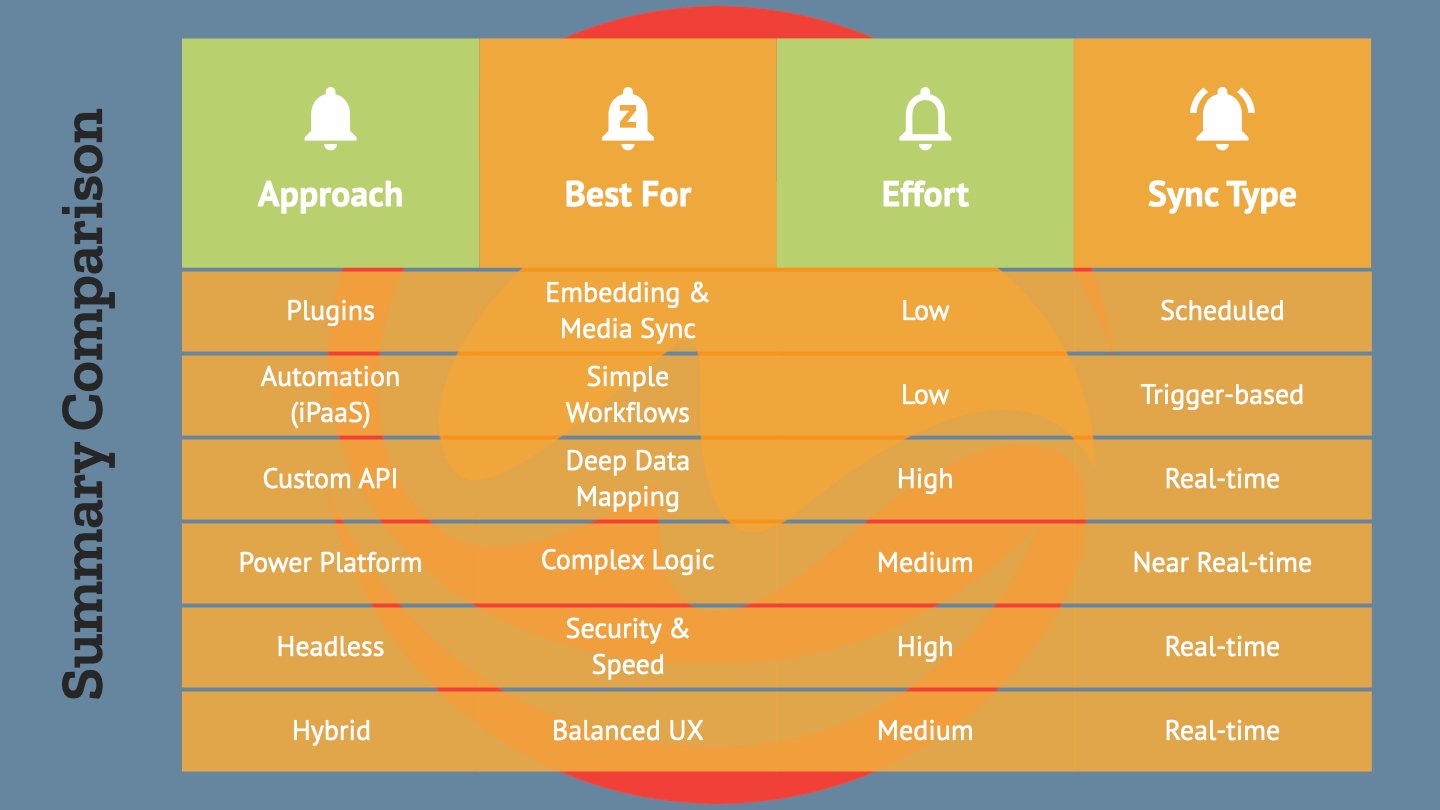
The diagram on the right summarizes and compares the different approaches to connecting WordPress with Microsoft SharePoint.
Key Considerations: Security & Permissions
After selecting which approach to integrate your platforms, your next priority is protecting the “gatekeeper” boundary. Since SharePoint is typically a secure intranet or an internal workspace and WordPress is often your public-facing site, bridging them requires a strict strategy for access control to prevent data leaks.
Authentication & SSO
To provide a seamless experience, leverage Microsoft Entra ID (formerly Azure AD). Implementing Single Sign-On (SSO) ensures that users don’t have to juggle multiple credentials. It also allows WordPress to “recognize” a user’s SharePoint permissions automatically, displaying only the files they are authorized to see.
The Principle of Least Privilege
Don’t give your WordPress integration “Global Admin” rights. Create a dedicated service account with the minimum permissions necessary to read or write the specific libraries you intend to sync. This limits the blast radius if one platform is ever compromised.
Data Mapping & Visibility
Be explicit about what stays private. Configure your integration to ensure that internal-only SharePoint metadata or drafts don’t accidentally publish as public WordPress posts. Regularly audit your sync settings to confirm that “Internal Only” remains internal, maintaining a clear boundary between your collaborative workspace and your public site.
Best Practices for a Smooth WordPress SharePoint Integration
To ensure your WordPress–SharePoint connection remains a bridge rather than a bottleneck, follow these core principles for long-term maintenance and performance:
Start Small with a Pilot
Avoid syncing your entire SharePoint environment at once. Begin by connecting a single document library or a specific department’s folder to test the workflow. This allows you to iron out mapping issues or permission glitches before a company-wide rollout.
Optimize for Performance
Frequent, real-time syncing can tax your WordPress server’s resources. Whenever possible, use scheduled syncs during off-peak hours or implement on-demand loading. This ensures your site stays fast for users while still providing seamless access to necessary documents.
Establish a Content “Source of Truth”
Prevent version control chaos by deciding which platform “owns” the data. Typically, SharePoint should remain the master repository for documents, while WordPress acts strictly as the publishing layer. Training your team to update files in SharePoint ensures the WordPress version stays current automatically.
Regularly Audit Connections
API tokens can expire and automated flows can occasionally break. Set a periodic reminder to audit your integration settings, verify that service accounts are still active, and ensure that no unauthorized folders have been accidentally added to the sync list.
Conclusion: Bridge the Gap Today
The “Best of Both Worlds” isn’t just a catchy phrase, it’s a competitive advantage for any modern organization. By connecting SharePoint’s robust document security with the flexibility of WordPress, you eliminate data silos and empower your team to work within the environments they know best. Whether you choose a dedicated plugin or a custom automated flow, the goal is a seamless, secure flow of information that drives productivity.
Ready to connect your WordPress and SharePoint to streamline your workflow?
Don’t let your data stay isolated. Pick one high-impact use case — like a central employee handbook or a client document portal — and start your first pilot integration this week to see the efficiency gains firsthand.
Not sure where to start? Contact us for a free demonstration and to discuss your specific needs, we’ll find the perfect integration path for your business.
Email: sales@wavyos.com
WhatsApp: +852 6099 4407
Other topics that you might be interested in:
- Our website design and development, mobile app development and SharePoint services.
- SharePoint for Intranets: Key Advantages, Limitations, and Use Cases
- 12 Key SharePoint Features Explained: Sites, Libraries, Permissions, Automation
- Consultancy Management System for Engineers and Quantity Surveyors: Milestones, Changes, and Cost Assurance
- Our New Customizable WooCommerce Order Fulfillment System
- Unlocking the Power of Multilingual WordPress Website
